
A configurable Wayland desktop
Ferese combines a window manager and desktop shell with one configuration. 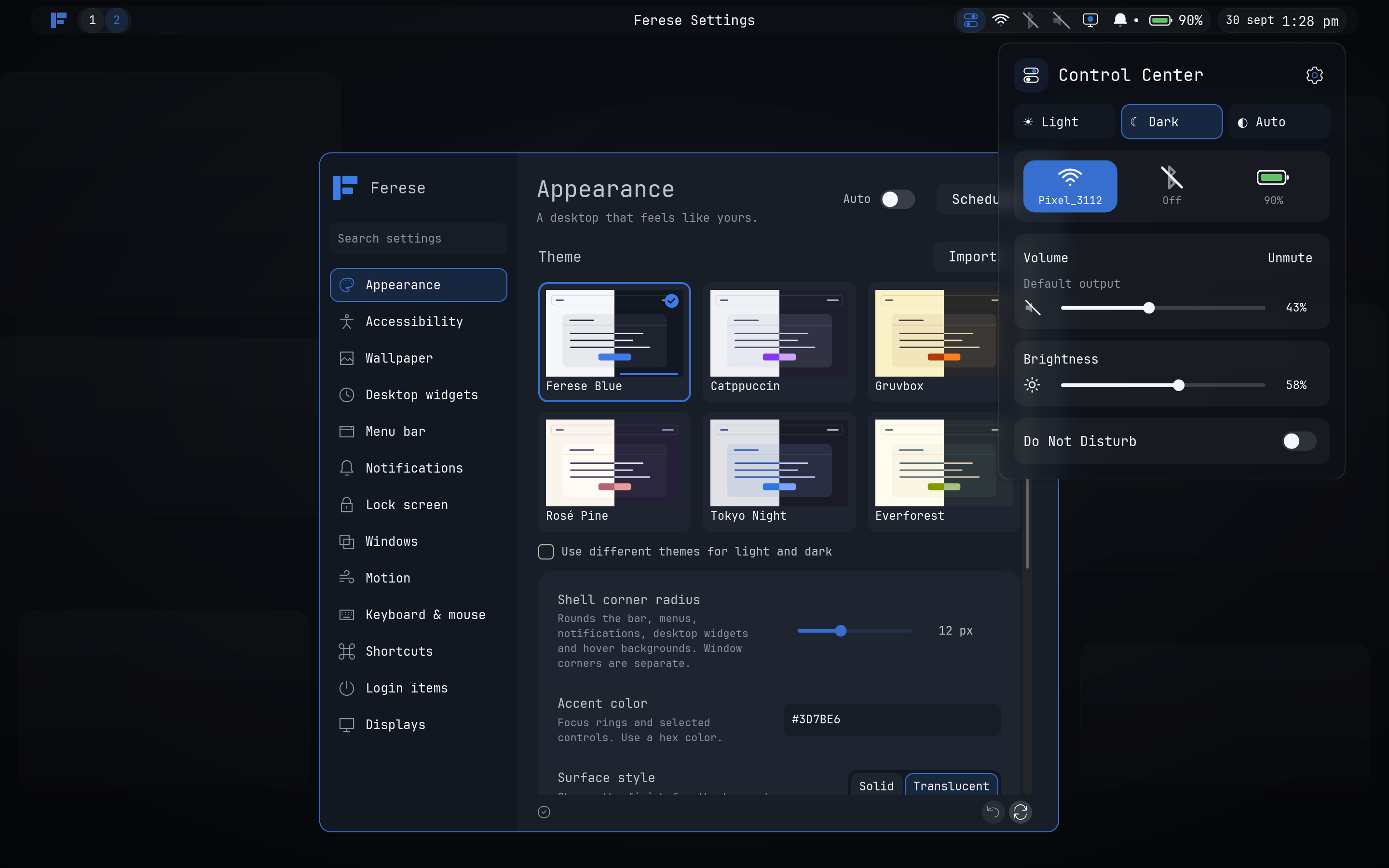 [View more screenshots](docs/screenshots.md) ## Features - Scrolling columns with window grouping, tree tiling and floating windows that remember their size and placement - Workspace overview and recent-window switching - Remappable keyboard shortcuts and touchpad gestures - [Continuum motion](docs/configuration.md#animations): interruptible springs, gesture momentum and motion settings shared by the compositor and shell - Multiple monitors with fractional scaling and automatic refresh-rate switching on low battery - Themes, wallpapers and blur that update live, with Light/Dark/Auto modes and custom KDL themes - Squircle window and shell corners with matching borders, shadows and blur masks - Desktop widgets, including a clock and sticky notes - Screenshots with annotation, screen sharing and built-in recording - A built-in lock screen and authentication dialogs - [Idle inhibition](docs/configuration.md#idle-inhibition) during fullscreen media playback, with rules for selected apps - Settings and Control Center with Wi-Fi, Bluetooth and audio controls ## How Ferese compares Ferese combines scrolling and tree layouts with its own desktop controls. The table compares current upstream features and names separate tools where they are needed. | Feature | Ferese | [Hyprland](https://github.com/hyprwm/Hyprland) | [niri](https://github.com/niri-wm/niri) | | --- | --- | --- | --- | | Tiling layouts | Scrolling columns and tree tiling; switch per workspace | [Scrolling, dwindle, master and monocle; per-workspace layouts](https://github.com/hyprwm/Hyprland#features) | Scrolling columns | | Floating windows | Built in | Built in | Built in | | Workspace overview | Built in | Plugins such as [HyprExpo](https://github.com/sandwichfarm/hyprexpo) | Built in | | Animations | [Continuum](docs/animation-model.md): interruptible springs, gesture momentum; speed and reduced-motion settings shared by the compositor and shell | Bézier and spring curves | [Spring and easing animations; custom shaders](https://niri-wm.github.io/niri/Configuration:-Animations.html) | | Live configuration reload | Yes | Yes | Yes | | Monitor mirroring | Built in | [Built in](https://wiki.hypr.land/configuring/core/monitors/) | Separate tool, such as [wl-mirror](https://niri-wm.github.io/niri/Screencasting.html#screen-mirroring) | | Desktop controls | Included Settings and Control Center | [Separate utilities](https://wiki.hypr.land/hypr-ecosystem/) or a desktop shell | [Separate desktop shell or tools](https://niri-wm.github.io/niri/Integrating-niri.html#desktop-components) | | Notifications | Included in ferese-shell | [Separate notification daemon](https://wiki.hypr.land/Useful-Utilities/Must-have/) | [Separate notification daemon or shell](https://niri-wm.github.io/niri/Integrating-niri.html) | | Lock screen | Included ferese-lock | Separate [hyprlock](https://wiki.hypr.land/Hypr-Ecosystem/hyprlock/) | Separate locker, such as [swaylock or hyprlock](https://niri-wm.github.io/niri/Integrating-niri.html) | | Screen-sharing backend | xdg-desktop-portal-ferese | [xdg-desktop-portal-hyprland](https://wiki.hypr.land/Hypr-Ecosystem/xdg-desktop-portal-hyprland/) | [xdg-desktop-portal-gnome](https://niri-wm.github.io/niri/Screencasting.html#overview) | Ferese's shell, Settings, lock screen and dialogs use a shared theme. Other desktop shells, including [DankMaterialShell and Noctalia](https://niri-wm.github.io/niri/Integrating-niri.html#desktop-components), also include desktop controls; their features depend on the shell and tools you install. ## Install Start with the [dependencies](docs/installation.md#requirements), then clone Ferese and build it as your normal user: ```sh git clone https://github.com/ferese-wm/ferese.git cd ferese ./scripts/install.sh ``` Once it’s installed, log out and choose **Ferese** at your login screen, or run `ferese-session` from a TTY or a greeter that accepts a command. The [installation guide](docs/installation.md) also walks you through previews, updates and recovery. ## Configure Configure Ferese through **Control Center → Settings** or `~/.config/ferese/config.kdl`. Changes apply live. Invalid edits leave the last working configuration in place. The [configuration reference](docs/configuration.md) and [example config](packaging/config.kdl) cover appearance, window layouts, displays and startup apps. ## Default shortcuts Use `Super`, usually the Windows key, to move around your desktop, and open **Settings → Shortcuts** whenever you want to change a shortcut or gesture. | Control | Action | | --- | --- | | Super + Enter | Open a terminal | | Display Fn key (`XF86Display`) | Choose the display mode | | Super + H / J / K / L | Focus left / down / up / right | | Super + Backspace | Return to the last focused window | | Super + Escape | Toggle between the last two visited workspaces on this monitor | | Alt + Tab / Alt + Shift + Tab | Preview recent windows forward / backward; release Alt to select, Escape to cancel | | Super + F | Maximize the window | | Super + Shift + F | Toggle fullscreen | | Super + R | Cycle column width | | Super + Tab | Open overview | | Super + M | Switch scrolling / tree layout | | Print Screen | Capture the active monitor and open Satty | | Super + Shift + S | Select a screenshot area | | Super + Shift + E | Ask to log out | | Super + left-button drag | Move a floating window | | Super + right-button drag | Resize a floating window | | Three-finger swipe up / down | Next / previous workspace | | Three-finger swipe left / right | Focus the window to the right / left | See [all shortcuts and mouse actions](docs/shortcuts.md) for window and workspace controls. ## Documentation The [documentation index](docs/README.md) lists the desktop guides. [Development instructions](docs/development.md) cover building, testing and contributing. Ferese is written in Rust using Smithay. Development happens [on GitHub](https://github.com/ferese-wm/ferese). If something goes wrong, [open an issue](https://github.com/ferese-wm/ferese/issues) with the steps to reproduce it and any relevant logs.