
A beautiful, fluid Wayland desktop made to feel like yours.
Install · Configure · Widgets · Notifications
Ferese is a complete Wayland desktop built around personalization. Its custom shell, native settings, live-reloading themes and wallpapers, desktop widgets, fluid animations, and scrolling and tiling layouts work together as one cohesive experience—beautiful by default and unmistakably yours. 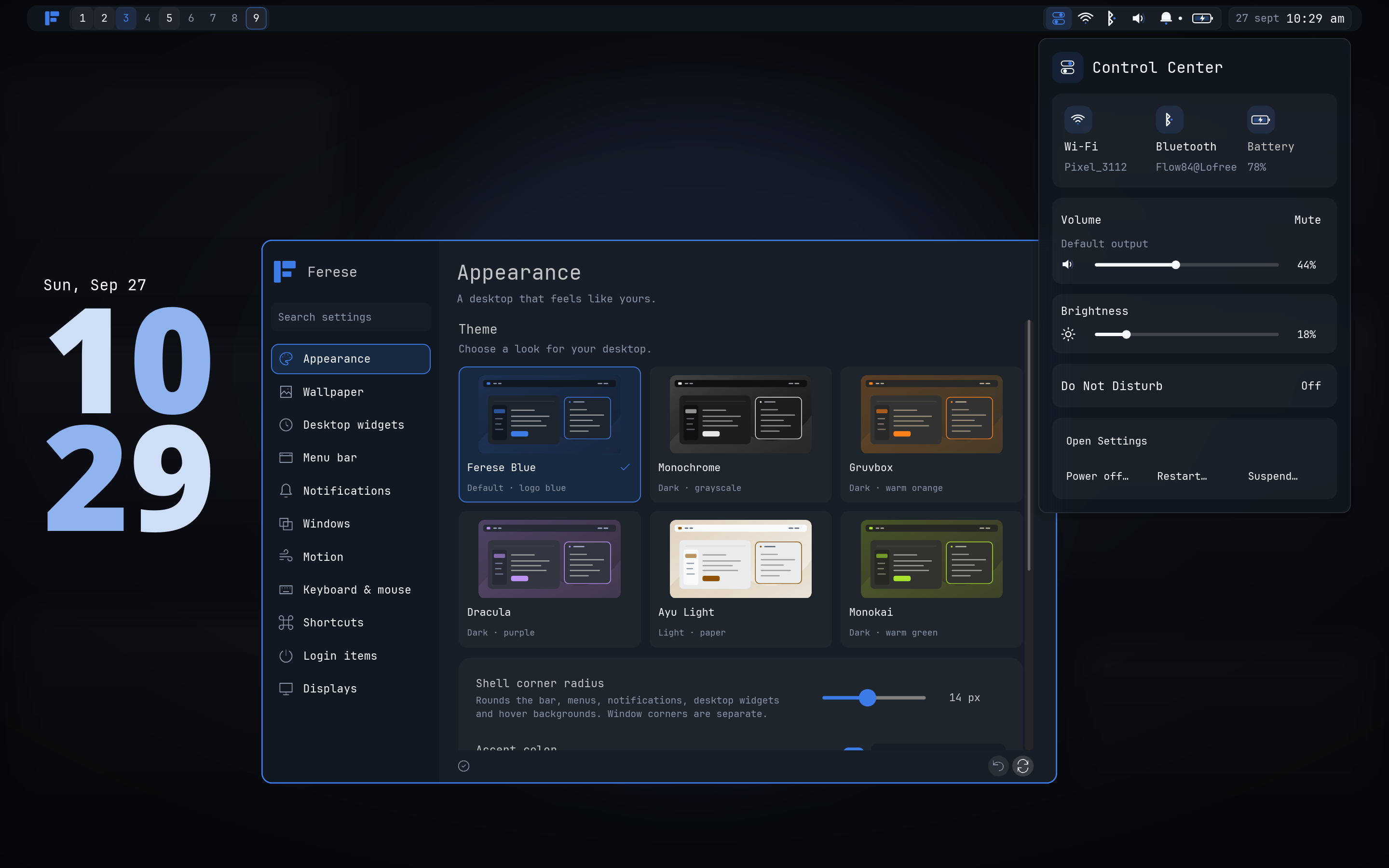 ## One cohesive desktop - **Flexible layouts:** scrolling columns, tree tiling, floating windows and a workspace overview. - **A native shell:** menu bar, control center, settings, notifications and desktop widgets designed to belong together. - **Personal by design:** themes, wallpapers, accent colors, blur, borders and motion that update without restarting your session. - **Ready for real setups:** gestures, multi-monitor support, fractional scaling, screenshots, background services and session locking. ## Make it yours Use the native Settings app for everyday customization, or edit `~/.config/ferese/config.kdl` when you want complete control. Ferese reloads changes as you make them and keeps the last working configuration if an edit is invalid. 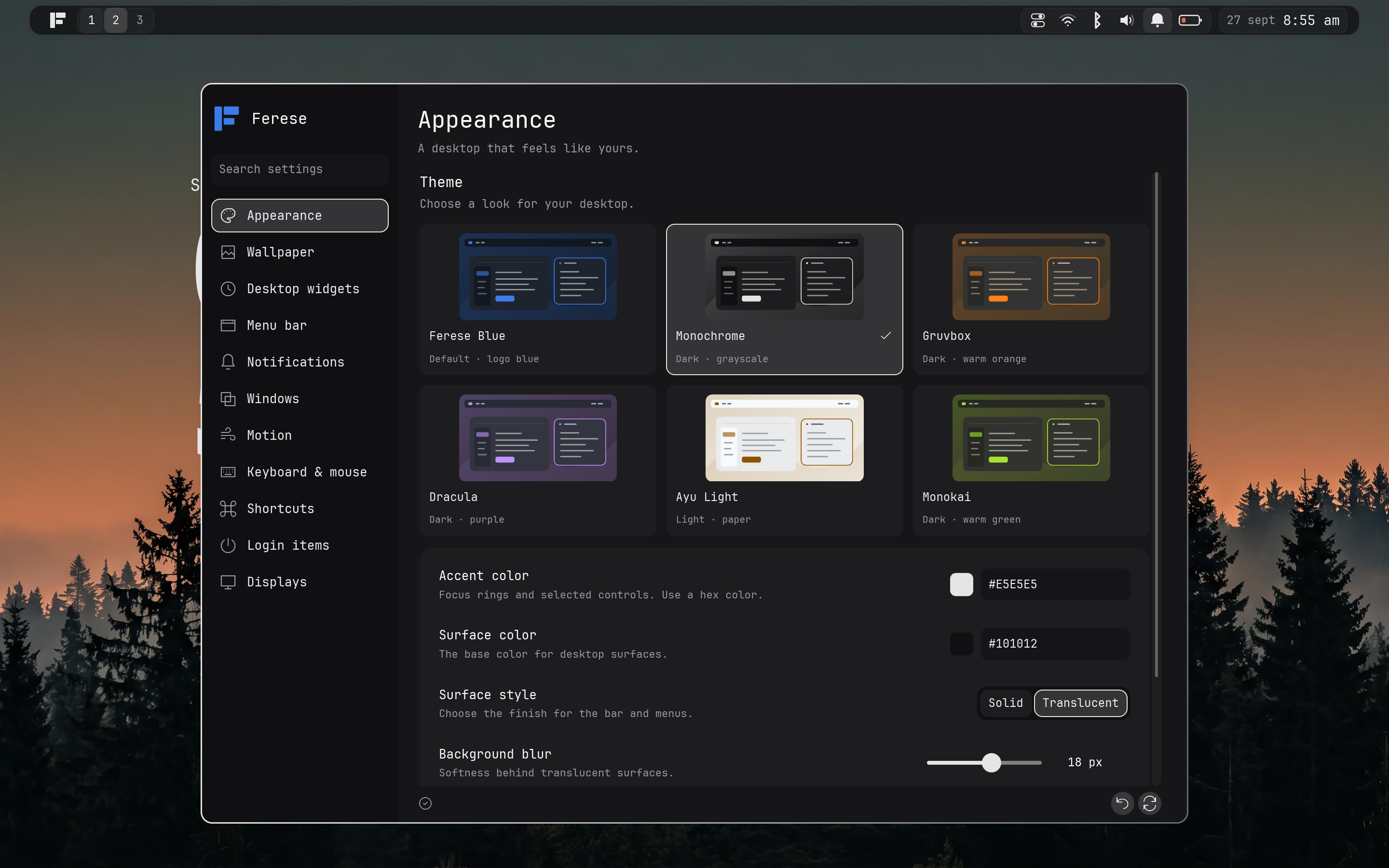 Choose a preset or build your own look. Window behavior, gestures, shortcuts, rules, displays, widgets and login items are configurable too. Start with the [configuration guide](docs/configuration.md) or the [example config](packaging/config.kdl). ## Install Install Ferese on Linux with any Wayland-capable login manager, a command-based greeter, or a local TTY. Start with the [installation guide](docs/installation.md) for system dependencies and Rust 1.95 or newer, then build as your normal user: ```sh git clone https://github.com/ferese-wm/ferese.git cd ferese ./scripts/install.sh ``` Log out and select **Ferese** at your login screen. For greeters that take a session command, use `/usr/local/bin/ferese-session`. The installer preserves your configuration and other sessions, and retains the previous release for rollback. The guide covers [all startup methods](docs/installation.md#start-a-session), optional tools, updates, and recovery. To preview Ferese inside your current Wayland desktop instead: ```sh cargo build --release --locked -p ferese -p ferese-shell -p ferese-settings -p feresectl -p ferese-lock target/release/ferese --backend nested --grant-effects --grant-shell-control -- \ target/release/ferese-shell ``` ## Get around These are the built-in defaults; every shortcut and gesture can be changed. | Shortcut | Action | | --- | --- | | Super + Enter | Open a terminal | | Super + H / J / K / L | Focus a window | | Super + R | Cycle column width | | Super + Tab | Open workspace and window overview | | Super + M | Switch scrolling / tree layout | | Super + Shift + S | Select a screenshot area | Three-finger swipes move between workspaces and windows. Open **Control Center → Settings → Shortcuts** to change them or assign gestures to other actions. ## Documentation - [Why Ferese](docs/why-ferese.md) - [Installation and recovery](docs/installation.md) - [Configuration reference](docs/configuration.md) - [Desktop widgets](docs/desktop-widgets.md) - [Notifications](docs/notifications.md) - [Native locker](docs/locking.md) ## Development ```sh cargo test --workspace --locked cargo fmt --all --check ``` Ferese is built in Rust on Smithay. Use release builds when evaluating motion and startup performance, and keep another desktop session available while testing hardware behavior.