
A configurable Wayland desktop
Ferese is a Linux desktop built in Rust with Smithay. It includes a window manager, desktop shell, Settings and a lock screen, with shared configuration and theming. Choose a layout per workspace and configure the desktop through Settings or a KDL file. **Version 0.1.0** is the first stable release. See the [release notes](docs/releases/v0.1.0.md) for what's included. Packages target Fedora 44 and Arch Linux on x86_64. This README and the wiki describe `main`. This local `twilight/rime-service-poc` branch adds an independent native Wayland Rime service and compositor popup fixes. See [Rime prototype validation](docs/development/rime-poc.md) for its architecture, isolated preview, test commands and current limits. 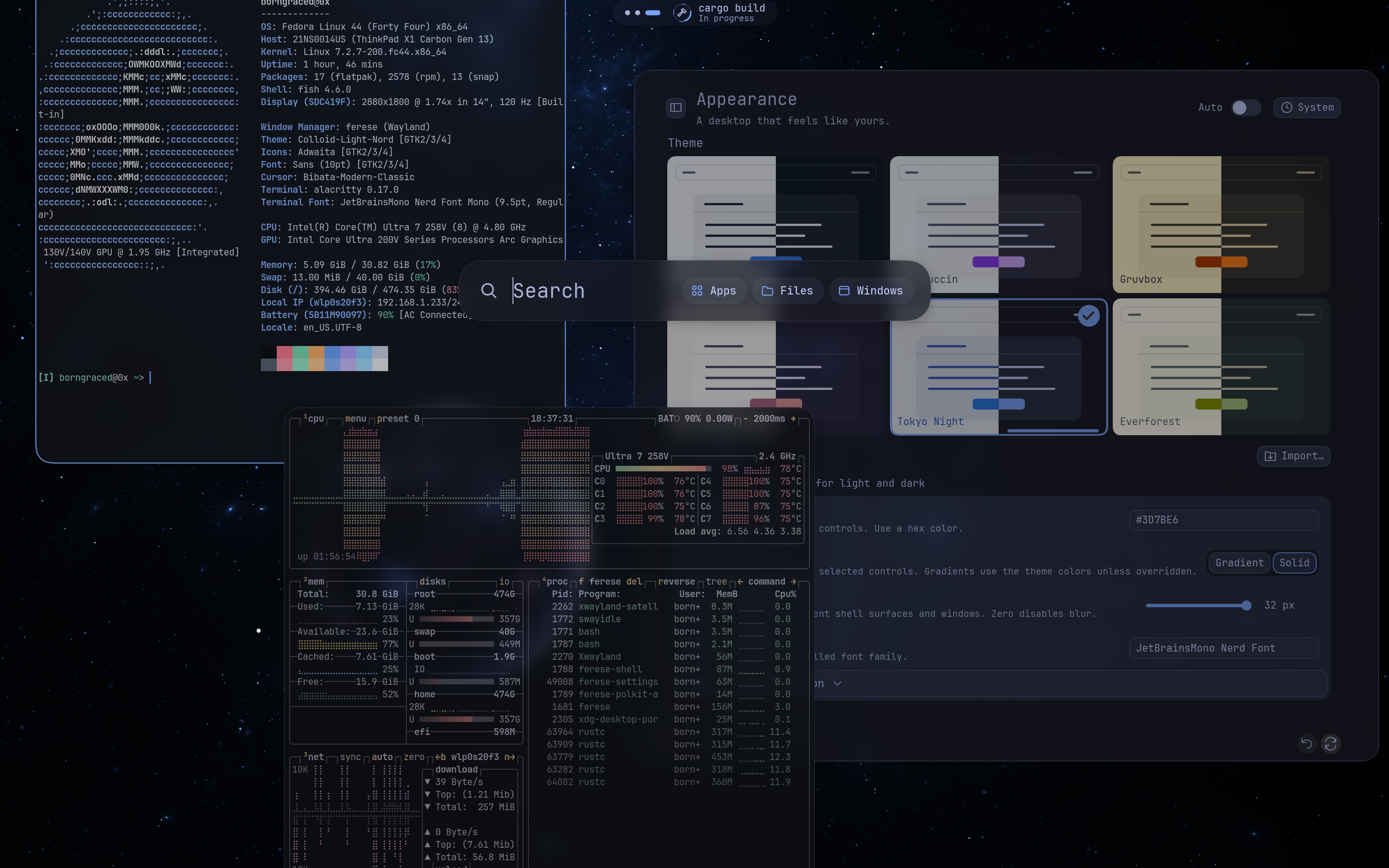 [Screenshots](https://github.com/ferese-wm/ferese/wiki/Screenshots) ## Using Ferese - Use scrolling columns, tree tiling, floating windows and [tabbed window groups](https://github.com/ferese-wm/ferese/wiki/Tabbed-Windows). - Arrange [panel items and groups](https://github.com/ferese-wm/ferese/wiki/Panel-Configuration), place the panel at the top or bottom, and choose its style. - Follow command and build progress in the panel with [Live Activities](https://github.com/ferese-wm/ferese/wiki/Live-Activities). - Set up [binding modes](https://github.com/ferese-wm/ferese/wiki/Configuration-Bindings#binding-modes) for resizing, launching apps and other shortcut groups. - Change themes, wallpapers, blur and animation settings across the desktop. Configuration edits apply live. Invalid edits leave the last working configuration active. - Manage displays, Wi-Fi, Bluetooth and audio from Settings and Control Center. Multiple monitors, fractional scaling and monitor mirroring are supported. - Annotate screenshots, share a window, workspace or display, and record a monitor or selected region with audio. The [feature roadmap](https://github.com/ferese-wm/ferese/issues/5) tracks implemented features and remaining work. ## Install Download the package for your distribution from [Releases](https://github.com/ferese-wm/ferese/releases/tag/v0.1.0), then follow the [package installation instructions](https://github.com/ferese-wm/ferese/wiki/Packages-and-Releases#install-a-release-package). Read the [release notes](docs/releases/v0.1.0.md) before upgrading. To build the current development version, install the [build dependencies](https://github.com/ferese-wm/ferese/wiki/Installation#requirements) and run these commands as your normal user: ```sh git clone https://github.com/ferese-wm/ferese.git cd ferese ./scripts/install.sh ``` Once installed, log out and select **Ferese** at your login screen, or run `ferese-session` from a local TTY. You can also try a [nested preview](https://github.com/ferese-wm/ferese/wiki/Installation#preview-and-logs) inside your existing Wayland desktop. ## Configure Open **Control Center → Settings** or edit `~/.config/ferese/config.kdl`. The [configuration reference](https://github.com/ferese-wm/ferese/wiki/Configuration) and [example config](packaging/config.kdl) cover appearance, layouts, displays, window rules and startup apps. ## First shortcuts `Super` is usually the Windows key. Change shortcuts and gestures in **Settings → Shortcuts**. | Control | Action | | --- | --- | | Super + Enter | Open a terminal | | Super + H / J / K / L | Focus left / down / up / right | | Super + Tab | Open overview | | Super + M | Switch scrolling / tree layout | | Super + Shift + E | Ask to log out | See [all shortcuts and gestures](https://github.com/ferese-wm/ferese/wiki/Shortcuts-and-Gestures) for resizing, grouping windows, screenshots and workspace navigation. ## Development and bug reports [Development instructions](https://github.com/ferese-wm/ferese/wiki/Development) cover building, tests and hardware checks. To [report a bug](https://github.com/ferese-wm/ferese/issues), include steps to reproduce it, your version or commit, relevant logs, and whether you ran a nested preview or a direct session.